Product·
MGPT Telestration is live: you can now draw on your video clips

MyGamePlan
Football Analytics Platform
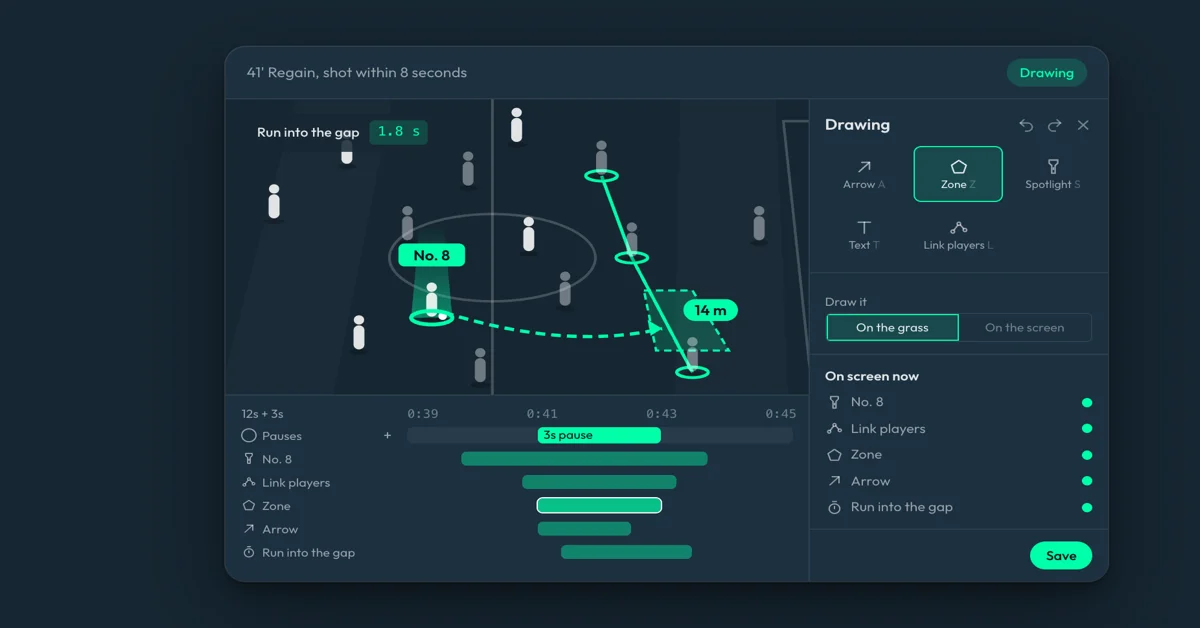
MGPT Telestration is live. From today you can draw on every video clip in MyGamePlan: spotlight a player, link the back line, draw the run and mark the space. It is included in every plan.
Why we built it
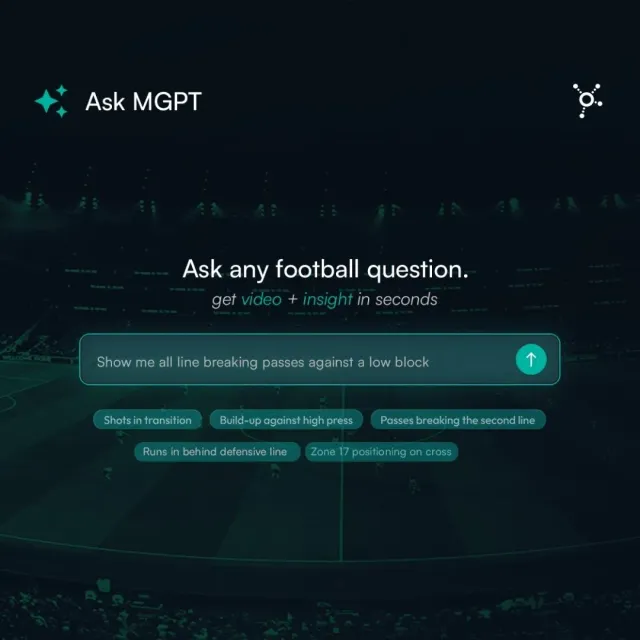
Every answer MGPT gives and every chart in a report is a set of clips. Until now, explaining what a player should see in those clips meant pausing the video and pointing at the screen, or exporting it to a separate drawing tool and back. Drawing now happens where the clips already are, on the match video your staff works with every day.
What you can draw
Spotlight a player. A ring at the player's feet, a beam and a name. It follows the player while the clip plays, so you never redraw it frame by frame.
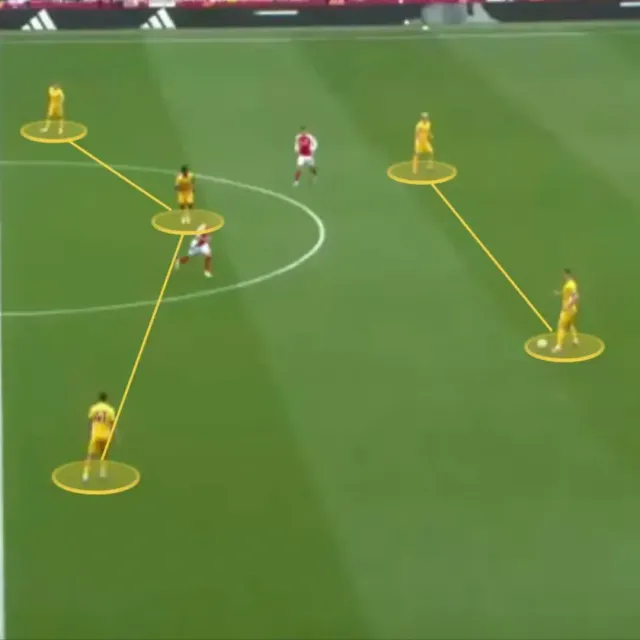
Link players. Connect two or more players and the line keeps up with them, with the distance between them in metres. The gap in the back line, measured as it opens.
Arrows and zones. Draw the run or the pass, along the grass or through the air, and mark the space it goes into.
Text and timers. Name the moment, or add a timer that counts how long the press takes to arrive.
Pauses. Hold the frame for a few seconds where the drawing needs time to land, then let the clip play on.
On the grass, not on the glass
Shapes lie flat on the pitch in perspective. They stay put while the camera pans, and the players run over them, the way you see it on television. Text can sit on the screen instead, wherever you put it.
Everywhere the clip goes
Save the drawing once and it travels with the clip: into the playlist you show in the video session, into the clip you download, and into the presentation you export to PowerPoint. Every save keeps the version before it, so nothing a colleague drew is lost.
Coming soon: ask MGPT to draw it
Next, you will not have to draw at all. Tell MGPT what you want to show, in your own words, and it puts the spotlight, the links and the arrows on the clip for you. It already knows who is who from the match data. You can still move or change anything by hand afterwards.
Try it
Open any clip, press Draw (or D) and pick a tool. See it on the Video page, or try MyGamePlan for free.
Run this on your own matches.
Ask MGPT about your team or your next opponent. Free to try with your professional email.